How to Use NordVPN: Step-by-Step Setup for Every Device (2026)
How to Use NordVPN: The Short Answer
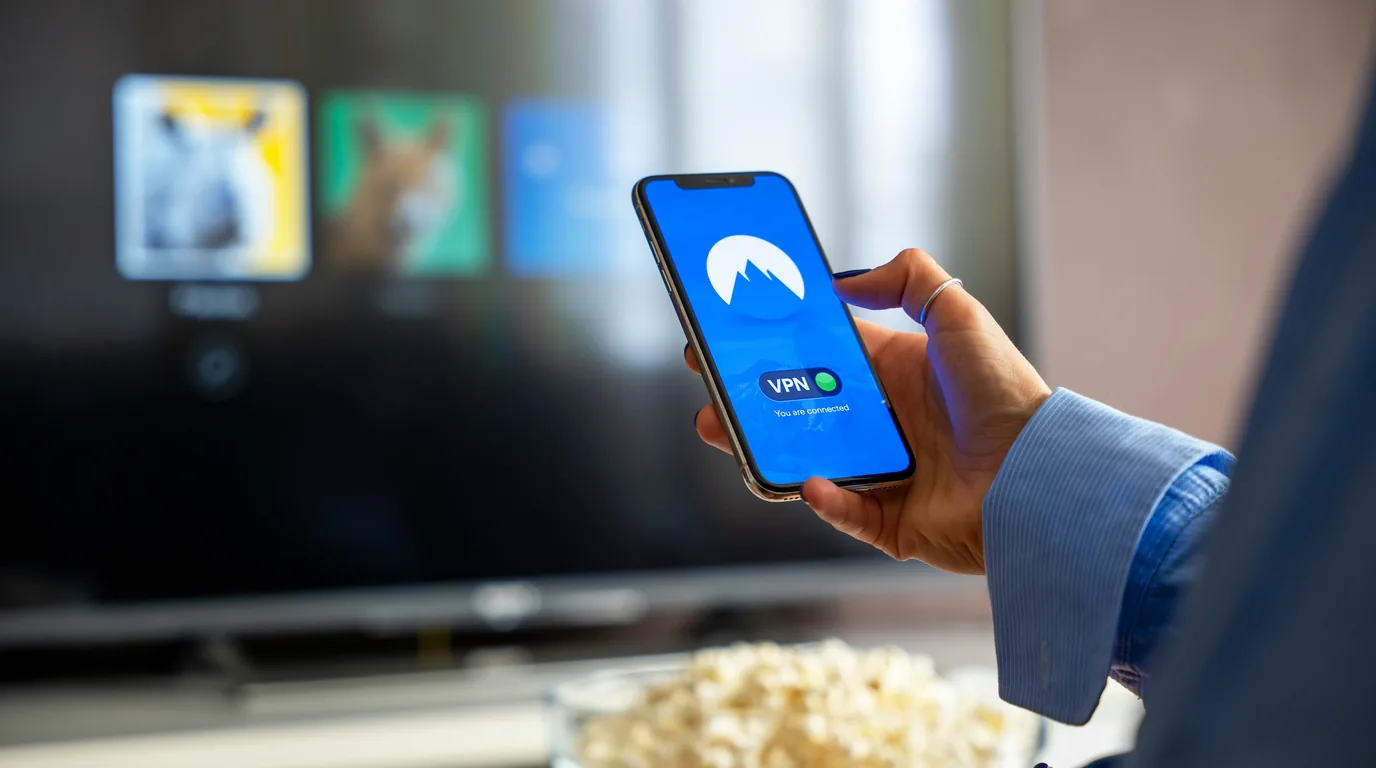
To use NordVPN, install the app on your device, log in with your Nord Account, and press the quick-connect button — labelled "Secure my connection" in current apps (older versions say "Quick Connect") — or pick a country on the map. Once it shows as connected, your traffic runs through NordVPN's encrypted tunnel. Then spend two more minutes in Settings: choose NordLynx as the protocol, switch on the kill switch and turn on auto-connect. Everything below walks through those steps on Windows, macOS, iOS, Android, Linux, routers and TVs.
Why NordVPN Setup Matters
NordVPN is one of the easiest VPNs to set up, but the default settings are not always optimal. Taking five extra minutes to configure the right protocol, enable the kill switch, and set up auto-connect can dramatically improve your speed, privacy, and reliability. This guide is written for beginners and works in two passes: it starts with the fastest possible setup, then goes device by device — from Windows to routers — so you only need to follow the section relevant to you. If you have not settled on a provider yet, our full NordVPN Review 2026 covers where it leads and where it lags before you commit.
The Fast Path: NordVPN Running in About Five Minutes
If you are new to VPNs and simply want to be protected, this is the whole job — five steps, no technical knowledge required. It is a complete, working setup, and for most people it is all they will ever need. Everything after this section is optional detail: carry on through the step-by-step sections below if you want the connection tuned for speed, or you need NordVPN on something that cannot run an app, such as a router, a smart TV or a games console.
- Create your account at nordvpn.com and set a strong, unique password.
- Install the app for the device in front of you — Windows, macOS, iOS, Android or Linux.
- Log in and press the quick-connect button ("Secure my connection" in current apps, "Quick Connect" in older ones). The app chooses a nearby server for you, and you are protected the moment it connects.
- Turn on the kill switch in Settings, so a dropped tunnel cannot expose your real IP.
- Confirm it worked by searching "what is my IP" — the address and country shown should not be your own.
Step 1: Create Your NordVPN Account
Head to nordvpn.com and choose a plan. The longest term always offers the lowest cost per month by a wide margin, and monthly billing is by far the most expensive way to buy — check the current figures on NordVPN's own page, including the renewal rate rather than just the introductory one, since pricing is promotional and varies by the country you buy from. NordVPN accepts credit cards, PayPal, Google Pay, Amazon Pay, and cryptocurrency for extra privacy.
After checkout, you'll receive an email to set your password. Use a strong, unique password — this account protects all your VPN traffic. If available, enable two-factor authentication (2FA) in your account dashboard under "Multi-factor authentication." NordVPN supports authenticator apps like Google Authenticator and Authy.
Step 2: Download the App for Your Device
Go to nordvpn.com/download or your device's app store. Here is where to find the app for each platform:
- Windows: Download the .exe installer from the NordVPN website, or get it from the Microsoft Store.
- macOS: Download from the Mac App Store or the NordVPN website. The website version supports OpenVPN and more advanced features; the App Store version uses IKEv2 and NordLynx.
- iOS: Search "NordVPN" in the App Store and install it.
- Android: Search "NordVPN" in Google Play Store. Alternatively, download the .apk directly from the NordVPN website.
- Linux: Open a terminal and follow the instructions at nordvpn.com/download/linux. NordVPN provides native packages for Ubuntu, Debian, Fedora, and Arch-based distributions.
Step 3: Install and Log In
Windows/macOS: Run the installer and follow the prompts. The install takes about 30 seconds. Launch the app and log in with the email and password from Step 1.
iOS/Android: After installing from the app store, open the app, tap "Log In," and enter your credentials. On iOS, you may be prompted to allow VPN configuration — tap "Allow" when the system dialog appears. This is required for any VPN app on iOS.
Linux: After installing the package, open a terminal and run:
- nordvpn login — this opens a browser window for authentication
- Follow the browser prompt and return to the terminal
- The terminal will confirm you are logged in
Step 4: Choose the Right Protocol — NordLynx
NordLynx is NordVPN's proprietary protocol built on WireGuard. Because WireGuard runs a much leaner codebase than OpenVPN, it is generally faster and lighter on battery while maintaining strong modern encryption — which is why NordLynx is the recommended default for most connections.
How to switch to NordLynx:
- Windows/macOS: Open Settings (gear icon) > General > VPN Protocol > select NordLynx.
- iOS: Settings > VPN Protocol > NordLynx.
- Android: Settings (gear icon) > VPN Protocol > NordLynx.
- Linux: Run nordvpn set technology nordlynx in the terminal.
Step 5: Enable the Kill Switch
The kill switch prevents your real IP from leaking if the VPN connection drops. It is one of the most important settings and is disabled by default in most NordVPN apps.
How to enable it:
- Windows: Settings > Kill Switch. You can choose "Internet Kill Switch" (blocks all traffic when VPN drops) or "App Kill Switch" (only kills specific apps). We recommend Internet Kill Switch for full protection.
- macOS: Settings > Kill Switch > toggle it on.
- iOS: The kill switch works automatically when using IKEv2 or NordLynx protocols on iOS. Go to iPhone Settings > VPN > NordVPN > toggle "Connect On Demand."
- Android: Settings > Kill Switch > enable it. You can also use Android's built-in "Always-on VPN" feature: go to Android Settings > Network > VPN > NordVPN > toggle "Always-on VPN" and "Block connections without VPN."
- Linux: Run nordvpn set killswitch enabled in the terminal.
Step 6: Enable Auto-Connect
Auto-connect ensures the VPN activates every time you boot your device or connect to a network, so you never accidentally browse unprotected.
How to enable it:
- Windows/macOS: Settings > Auto-Connect > toggle on. You can also set a preferred server or country for auto-connect.
- iOS/Android: Settings > Auto-Connect > toggle on.
- Linux: Run nordvpn set autoconnect enabled in the terminal.
Step 7: Choose the Right Server
NordVPN offers two approaches to server selection:
Quick Connect (recommended for most users): Click the quick-connect button — "Secure my connection" in current app versions, "Quick Connect" in older ones — and NordVPN automatically selects the fastest server based on your location and current server load. This is the best option for everyday use.
Manual selection: Click on a country on the map or in the server list to connect to a specific location. Use manual selection when you need to:
- Access content in a specific country (e.g., connect to the UK for BBC iPlayer)
- Use a specialty server — P2P servers for torrenting, Double VPN for extra encryption, Obfuscated servers for restrictive networks, or Onion Over VPN for Tor routing
- P2P: Optimized for file sharing with fast throughput.
- Double VPN: Routes traffic through two servers for extra encryption — slower but more private.
- Obfuscated: Disguises VPN traffic to get around blocks in China, Russia, or on corporate networks.
- Onion Over VPN: Connects to the Tor network through NordVPN — no need for the Tor browser.
Step 8: Test Your Connection
After connecting, verify that everything is working:
1. Open your browser and go to ipleak.net. 2. Check your IP: It should show the VPN server's location, not your real location. 3. Check DNS: Scroll down and verify that DNS servers belong to NordVPN, not your ISP. 4. Check WebRTC: Verify no WebRTC leak is detected. 5. Speed test: Go to speedtest.net and run a test with the VPN off, then again with NordLynx connected to a nearby server, averaging three runs each time. Compare them as a percentage of your own baseline rather than in raw Mbps — a modern WireGuard-class protocol on a nearby server should retain most of your line speed. The method, and how to read anyone else's published speed claims, is in how to evaluate VPN speed.
If your IP or DNS shows your real location, disconnect and reconnect. If the problem persists, switch protocols (try OpenVPN UDP) and check that the kill switch is enabled. For the full routine — seven checks, including how to test the kill switch itself — see how to test if your VPN is working.
Step 9: Set Up on a Second Device
NordVPN allows up to 10 simultaneous connections on one account. Repeat Steps 2–8 on your other devices. Some tips:
- Phone + computer is the most common setup. Install on both and enable auto-connect on each.
- Smart TV or streaming device: If your TV doesn't support VPN apps natively (most don't), use the SmartDNS feature: go to your NordVPN dashboard online, find SmartDNS, and set it up on your TV. Alternatively, configure the VPN on your router (Step 10).
- Browser extensions: NordVPN offers Chrome, Edge, and Firefox extensions for lightweight proxy protection. These only protect browser traffic — not your entire device.
Step 10: Configure NordVPN on Your Router
Installing NordVPN on your router protects every device on your network — including consoles, smart TVs, IoT devices, and guest devices — without using individual connection slots.
Compatible routers: NordVPN works best with routers running DD-WRT, Tomato, OpenWrt, or Merlin firmware. Asus routers with Merlin firmware are the easiest to configure.
Setup steps for Asus routers with Merlin: 1. Log into your router's admin panel (usually 192.168.1.1). 2. Go to VPN > VPN Client. 3. Download the OpenVPN configuration file for your desired server from nordvpn.com/servers/tools. 4. Upload the .ovpn file to your router. 5. Enter your NordVPN service credentials (available in your online dashboard under "Manual setup"). 6. Click "Apply" and the router will connect to NordVPN.
Alternative — NordVPN Aircove: If configuring a router sounds complicated, consider the NordVPN Aircove router, which has NordVPN built in. You just log in and connect — no manual configuration needed.
Split Tunnelling: Route Only What You Want Through the VPN
Split tunnelling lets you decide which apps go through the encrypted VPN tunnel and which use your normal connection. It is the fix for the two most common VPN annoyances: an app that refuses to work while the VPN is on, and a local device you still want to reach.
Why you'd use it:
- Banking apps often block traffic coming from a VPN IP — exclude the app so it uses your real connection while everything else stays protected.
- Local devices such as a network printer, a NAS, or a smart-home hub live on your home network, which the VPN can otherwise hide from you.
- Speed for trusted, high-bandwidth apps — route a large trusted download outside the tunnel while your browsing stays encrypted.
How to enable it:
- Windows: Settings > Split Tunnelling > toggle on, then choose "Enable VPN for selected apps only" or "Disable VPN for selected apps" and add the apps you want to route or exclude.
- Android: Settings > Split Tunnelling > select the apps that should bypass the VPN.
Meshnet: Link Your Own Devices Privately
Meshnet is a free NordVPN feature — it works even without a paid subscription — that links your own devices into a single private, encrypted network over the internet. You can connect up to 10 of your own devices and invite up to 50 more into the mesh.
What you can do with it:
- Reach your home PC while travelling — access files on a device back home as if you were on the same local network.
- Route your traffic through your own device in another location, rather than a shared VPN server.
- LAN parties and file transfer — link friends' devices into one encrypted network for local-style gaming or secure direct transfers.
- Windows/macOS: open the Meshnet tab in the NordVPN app and turn it on. Sign in on your other devices with the same account to link them automatically, or send an invitation to link someone else's device.
- Android/iOS: open Meshnet in the app and enable it, then pair your other devices the same way.
Troubleshooting Common Issues
VPN won't connect: Try switching protocols (NordLynx to OpenVPN or vice versa). Check that your internet connection works without the VPN. Restart the app.
Slow speeds: Switch to a closer server. Make sure you are using NordLynx, not OpenVPN. Close bandwidth-heavy background apps.
Can't access streaming: Clear your browser cache and cookies, then reconnect to a server in the correct country. Some streaming services detect and block VPN IPs — try a different server in the same country.
App crashes on startup: Uninstall the app, restart your device, and reinstall the latest version from the website.
Linux issues: Make sure the nordvpnd service is running: systemctl status nordvpnd. If not, start it with sudo systemctl start nordvpnd.
When the App Is Not an Option
Everything above assumes NordVPN's own app will run on the device. Sometimes it will not — router firmware, a NAS, a media box, or a Linux distribution nobody packages for. In those cases you connect by hand with an OpenVPN config file instead, using a separate set of service credentials rather than your account password. That is a different job with different pitfalls, so it has its own walkthrough: NordVPN without the app: manual OpenVPN setup and config files. Use the app if you can; use that page if you cannot.
Covering More Than One Device
One NordVPN account covers ten simultaneous connections, and the limit is on how many devices are connected at once rather than on how many you install the app on. There is no add-device screen and nothing to register — you install, sign in and connect. The detail that catches people out is that several devices sharing one server have to use different protocols, which is why a household can hit an apparent wall at four or five devices while nowhere near ten. That, and clearing the Session Limit Reached error, are covered in NordVPN on multiple devices.
If you want to cover hardware that cannot run the app at all — smart TVs, consoles, streaming sticks — put NordVPN on the router instead. NordVPN counts the router as a single device slot no matter how many devices sit behind it, which makes it the best value in the whole arrangement. The procedure, and the firmware that can actually do it, are in how to set up a VPN on your router.
Frequently Asked Questions
How do I use NordVPN for the first time?
Install the app, log in with your Nord Account and press the quick-connect button ("Secure my connection" in current apps). The app picks a nearby server for you. Then open Settings, choose NordLynx, and switch on the kill switch and auto-connect.
How many devices can I use NordVPN on?
One account covers 10 simultaneous connections. The limit counts devices connected at the same time, not devices with the app installed, and a router running NordVPN counts as one device however many devices sit behind it.
Is the NordVPN kill switch on by default?
Do not assume it is. It is disabled by default in most NordVPN apps, so turn it on in Settings (Windows, macOS, Android, Linux) or use Connect On Demand on iOS, as shown in Step 5.
Which NordVPN protocol should I use?
NordLynx, the WireGuard-based protocol, for everyday use. Switch to OpenVPN TCP on restrictive networks such as hotel Wi-Fi or a corporate firewall, where it is harder to block.
Can I use NordVPN on a smart TV or games console?
Most TVs and consoles cannot run the app. Use NordVPN's SmartDNS feature from your online dashboard, or put NordVPN on your router so every device behind it is covered.
Still Choosing a VPN?
If you are not yet sure NordVPN is the right service for you, our best VPN 2026 comparison ranks the main providers on audited no-logs status, jurisdiction, device limits and price.
See NordVPN's Current Plans → Try Surfshark — Unlimited Devices →NorwegianSpark Editorial — Written with AI assistance and reviewed by the NorwegianSpark SA editorial team. Tutorials are independently written and regularly updated.